How to Sync Gutenberg Pages from Staging to Production
By Jon B.· Updated
Short answer
To sync a Gutenberg page from staging to production, move its block markup unchanged, bring its media across, and update the attachment IDs and URLs inside each block. Copying rendered text loses the blocks. Reusable blocks and templates are stored separately, so check that those already exist on production.
Gutenberg stores a page as block markup in the post content. That's friendlier than a page builder's data, but it still contains details tied to one site.
Move it without care and the layout may survive while the images quietly point at the wrong files.
What's inside a Gutenberg page?
Each block is saved with an HTML comment that holds its settings as JSON. An image block, for example, stores an attachment ID in that comment and a wp-image class in its markup.
Those IDs belong to one site's media library. The same ID on production can point at a different file, or nothing at all.
What usually breaks?
Absolute URLs still point at staging. Attachment IDs point at the wrong media. Reusable blocks, now called synced patterns, are referenced by ID and stored as their own posts. Theme templates and global styles live outside the page entirely.
How do you sync a block page with EZ Page Sync?
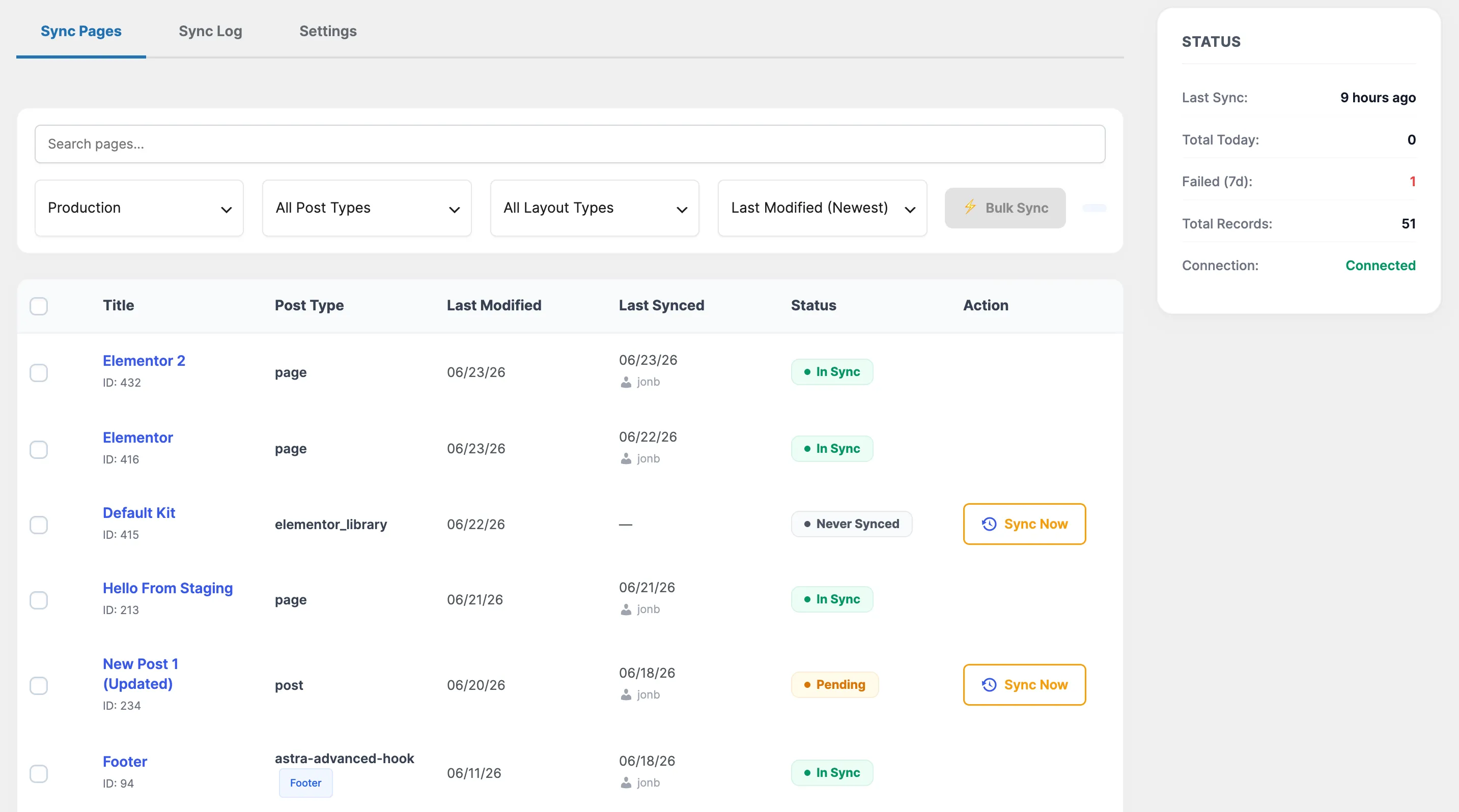
EZ Page Sync sends the post content unchanged, so block markup arrives intact. Staging URLs are rewritten on arrival on every tier. Inline media sync is a Premium feature: it brings the files across and remaps the IDs inside blocks, including wp-image classes and id and ids values.
Reusable blocks, templates, template parts, global styles, and navigation menus are not synced. Create those on production first, or the page may reference something that isn't there.
- 1Check the page for synced patterns or template changes, and recreate those on production if needed.
- 2Run Dry Run or Preview on the page.
- 3Sync the page to production.
- 4Check images in the block editor and on the live page.
Guide FAQ
Frequently Asked Questions
Does EZ Page Sync sync reusable blocks?
No. Reusable blocks are stored as their own post type, which the plugin does not sync. Recreate them on production.
Will my images work on the Free tier?
Inline media sync needs Premium. On Free, the page content syncs and staging URLs are rewritten, but media files are not brought across.
Does it sync theme templates or global styles?
No. It syncs posts, pages, and custom post types. Templates and global styles must be moved another way.